Download Total Commander for Windows
The file manager trusted by power users since 1993. Two panels, tabbed browsing, built-in FTP, archive handling, and a plugin system that does just about anything.
What Is Total Commander?
A dual-pane file manager built for people who work with files all day and find Windows Explorer too limiting.
The Two-Panel Approach
Total Commander is a file manager for Windows that splits your screen into two directory panels placed side by side. You see your source folder on the left, your destination on the right, and you move or copy files between them with a single keystroke. Christian Ghisler, a Swiss developer, first released it in 1993 under the name “Windows Commander.” He has maintained and updated it continuously for over 30 years.
The layout borrows from Norton Commander, a DOS-era file manager that many system administrators grew up with. If you have never used anything like it, picture two Explorer windows locked together with a keyboard-driven command bar at the bottom. Once the muscle memory kicks in, most operations take fewer keystrokes than dragging and dropping.
Who Uses It
Total Commander has a loyal following among IT professionals, sysadmins, and developers who handle large numbers of files daily. The software runs on every version of Windows from 95 through 11, and there is a separate Android edition on Google Play. A lifetime license costs EUR 42 (roughly $44 USD), which includes all future updates at no extra charge. You can evaluate the full program without limitations before buying.
More Than a File Browser
Beyond copying and moving, Total Commander packs a built-in FTP/SFTP client, archive handling for ZIP, RAR, 7z, and a dozen other formats, a batch rename tool with regex support, and a file comparison utility for syncing directories. The plugin system adds even more: there are thousands of extensions for everything from viewing hex data to connecting to cloud storage services. Version 11.56, the latest stable release, weighs about 10.7 MB and installs with both 32-bit and 64-bit binaries included.
Explore the full feature list in the Features section below, or jump straight to Download.
Key Features
Total Commander packs decades of refinement into a single file manager. Here is what sets it apart from Windows Explorer and other alternatives.
Dual-Pane File Browser
Two directory panels sit side by side, letting you drag, copy, and move files between locations without juggling multiple Explorer windows. Each panel has its own tab bar, path breadcrumb, and drive selector. This orthodox layout has been the standard for power-user file management since the Norton Commander days, and Total Commander refines it further with column sorting, custom views, and color-coded file types.
Tabbed Browsing
Open multiple directories as tabs in each panel, just like browser tabs. You can lock tabs so they always return to a specific folder, save entire tab sets for different workflows, and switch between them with keyboard shortcuts. No more losing your place.
Built-in FTP, FTPS & SFTP
Connect to remote servers directly from the file panel. Total Commander supports FTP, FTPS (SSL/TLS), and SFTP (SSH) with saved connection profiles, resume on broken transfers, and background queue management. Remote directories appear and behave exactly like local folders.
Archive Handling
Browse ZIP, RAR, 7z, TAR, GZ, BZ2, LZH, ARJ, ACE, and CAB archives as if they were regular folders. Create, extract, and test archives without leaving the file manager. The internal packer handles ZIP natively, and plugins extend support to dozens more formats.
Advanced File Search
Search by name, content, date, size, attributes, or full-text with regex support. Results load into a separate panel where you can act on them in bulk. Saved search templates let you re-run complex queries with one click, and the search works inside archives too.
Multi-Rename Tool
Rename hundreds of files at once using pattern-based rules: counters, date stamps, find-and-replace, regular expressions, and EXIF metadata insertion. The live preview shows every change before you commit, so you can catch mistakes immediately. This single feature replaces standalone batch-rename utilities for most users.
Compare & Synchronize
Compare two files byte-by-byte or diff their contents line by line with built-in highlighting. The directory synchronize tool compares entire folder trees and copies only what changed, useful for backups and keeping USB drives in sync with your PC.
Plugin Ecosystem
Thousands of plugins are available across four categories: file system (WFX) for accessing cloud storage and network protocols, content (WDX) for custom columns and search criteria, lister (WLX) for previewing file formats, and packer (WCX) for additional archive types. The plugin API has been stable for years, so the library keeps growing.
Keyboard-Driven Workflow
Every operation has a keyboard shortcut, and nearly all of them are customizable. The function-key bar at the bottom (F3 View, F5 Copy, F6 Move, F7 MkDir, F8 Delete) mirrors the classic Norton Commander layout that experienced users rely on for speed.
Built-in Quick Viewer
Press F3 to preview text, images, HTML, hex dumps, and more without opening a separate application. Lister plugins extend preview support to PDF, Office documents, media files, and other formats. The viewer supports search within files and configurable fonts and encodings.
Portable USB Installation
Run Total Commander from a USB drive without installing anything on the host machine. Your settings, toolbar configurations, and plugins travel with you. Useful for IT professionals who work across different computers and want a consistent environment everywhere.
Full Customization
Toolbars, menus, keyboard shortcuts, column layouts, colors, and fonts are all configurable. You can build custom button bars that launch external tools, chain commands, or pass selected filenames as parameters. The INI-based configuration makes it easy to back up and share your setup.
Explore these features and more — download Total Commander to try them yourself.
Download Total Commander
Get the latest version of Total Commander for Windows. The combined installer includes both 32-bit and 64-bit builds in one package.
Total Commander 11.56
Total Commander is shareware. You can evaluate it for free with no time limit. A personal license costs EUR 42 (about $44 USD) and covers all future updates.
The installer supports silent mode via /AHID and /S switches for automated deployment.
A portable version is available from the official site – just extract to a USB drive and run directly.
Need help after downloading? Check the Getting Started guide below.
System Requirements
Total Commander runs on nearly any Windows PC. Here is what you need for a smooth experience.
| Component | Minimum | Recommended |
|---|---|---|
|
Operating System
|
Windows 95 (32-bit) Windows XP (64-bit) |
Windows 10 or Windows 11 |
|
Processor
|
Any x86-compatible CPU | Modern dual-core or better |
|
RAM
|
16 MB | 512 MB or more |
|
Disk Space
|
~20 MB (base install) | 50 MB+ (with plugins) |
|
Display
|
640 x 480 resolution | 1024 x 768 or higher |
|
Internet
|
Not required | For FTP/SFTP and plugin downloads |
Total Commander v11.56 ships as a combined 32-bit and 64-bit installer (~10.7 MB). The correct version is selected automatically during setup. A portable install option is also available for USB drives.
Screenshots
See Total Commander in action. Click any image to view it full size.
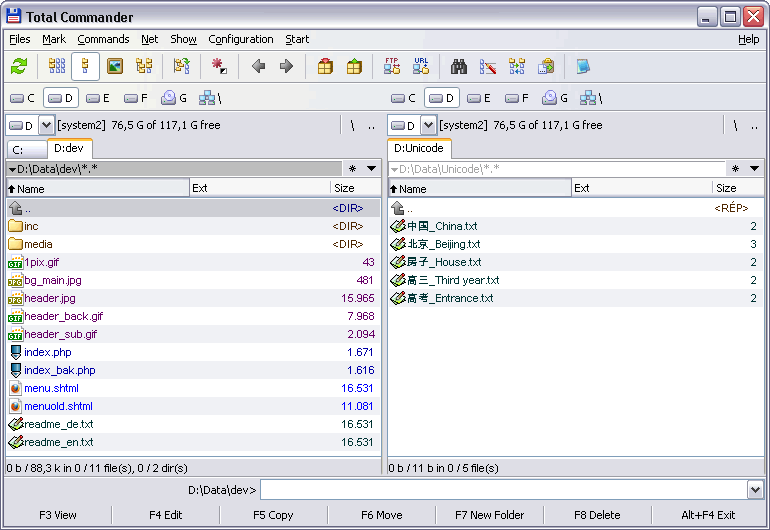
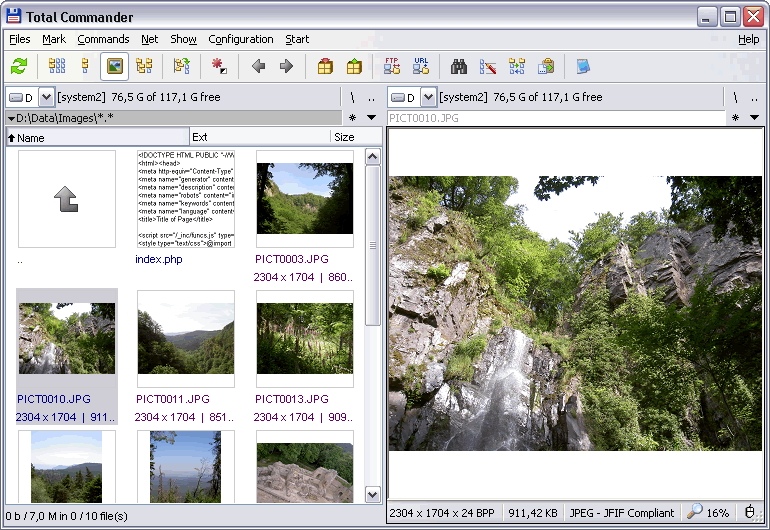
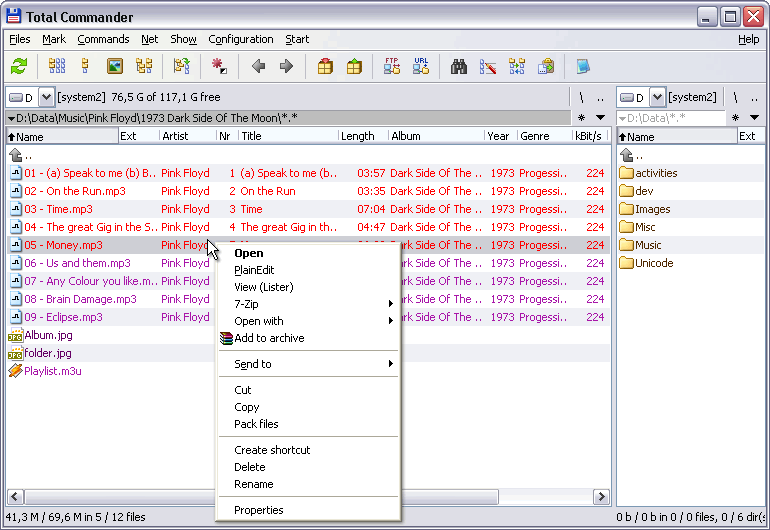
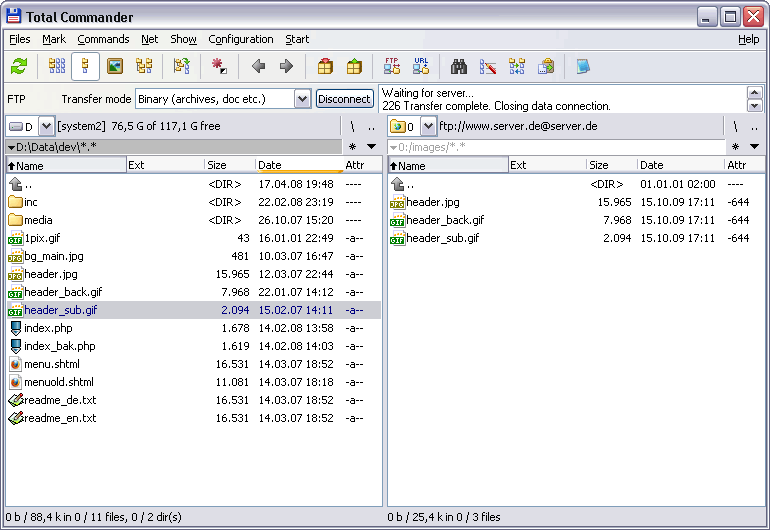
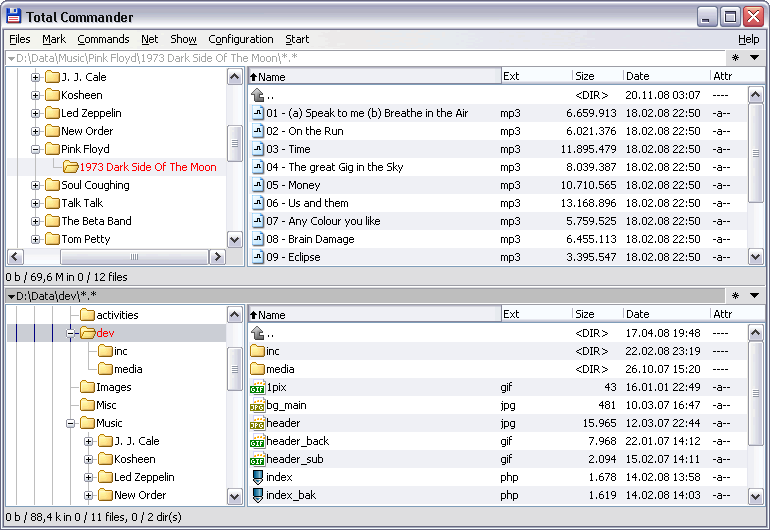
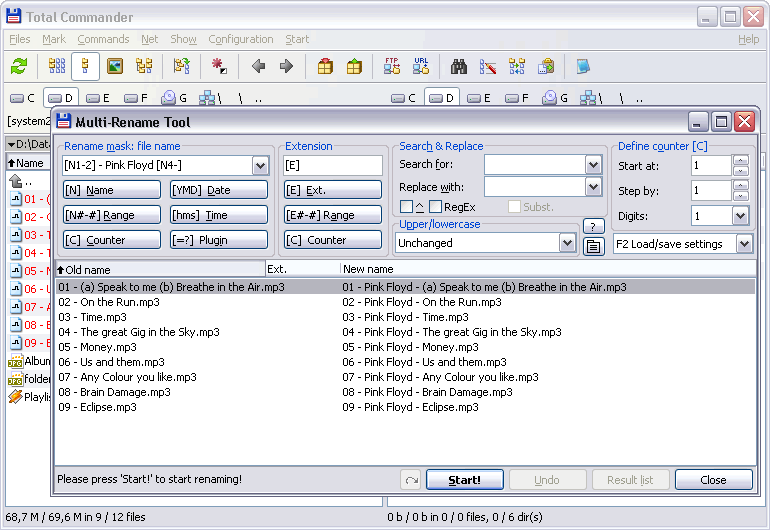
Screenshots from Total Commander running on Windows 10/11
Getting Started with Total Commander
From download to your first file operation, here is everything you need to start using Total Commander on Windows.
Downloading Total Commander
Head to our download section above to grab the installer. The combined 64+32-bit EXE is the recommended choice for most people — it works on every Windows version from 95 through 11 and automatically picks the right binary for your system. The download is about 10.7 MB.
If you know your system is 64-bit (almost all modern PCs), the 64-bit-only installer is slightly smaller at around 5 MB. There is also a 32-bit-only option if you run an older machine. All three are full-featured shareware builds with no limitations during the evaluation period.
The file you download is a standard Windows EXE installer. There is no MSI package, but Total Commander does support a portable setup too. If you want to run it from a USB stick without installing, the official USB installer tool at ghisler.com/usbinst.htm handles that. For a normal desktop install, just use the regular EXE.
Installation Walkthrough
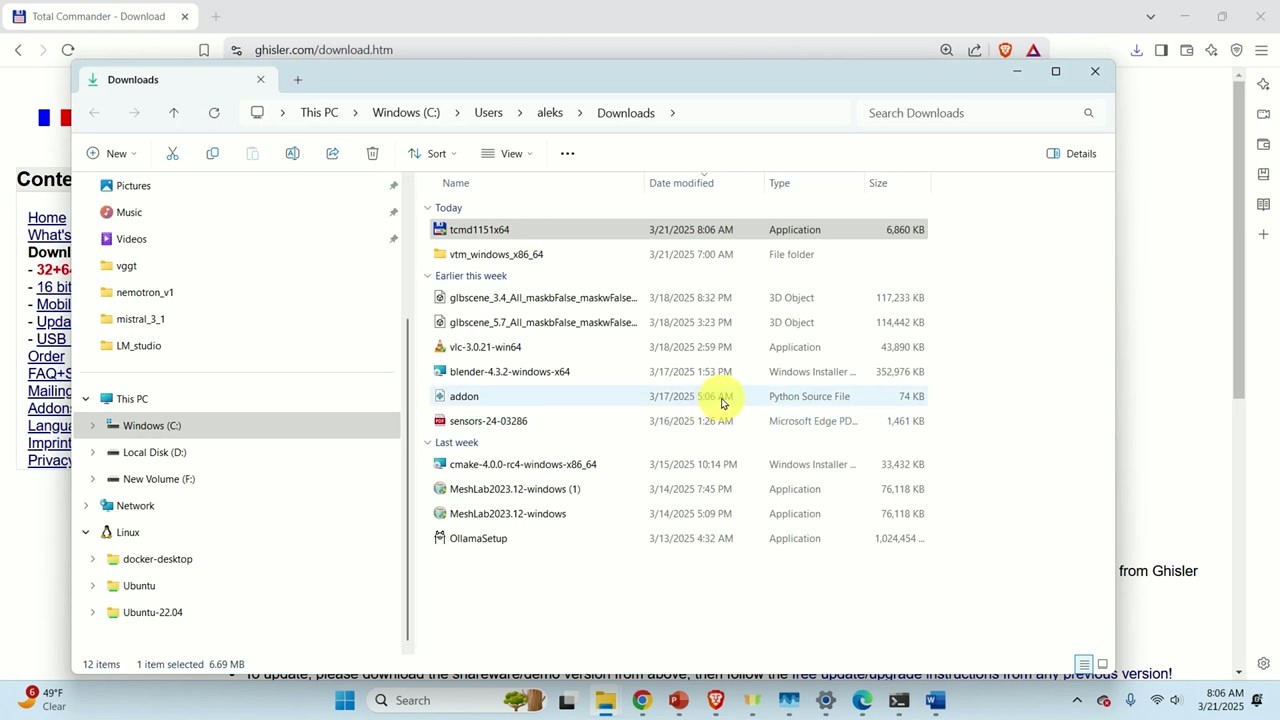
Double-click the downloaded EXE to start. If Windows SmartScreen pops up a blue warning, click “More info” and then “Run anyway” — the file is digitally signed and safe.
The installer walks you through a handful of screens:
- Language selection — pick your preferred language from a dropdown. English is the default.
- Installation directory — the default is
C:totalcmdfor 32-bit orC:totalcmdfor the combined installer. You can change this, but the default works fine. - INI file location — the installer asks where to store your settings. Choose “Windows directory or user profile” for a standard setup, or “In the program directory” if you want a portable-style install where config stays with the program files.
- Shortcuts — it offers to create a Start Menu entry and a desktop shortcut. Tick both if you like quick access. No browser toolbars or third-party software bundled here, so you can accept the defaults without worry.
Click “Next” through each screen and “Done” at the end. The whole process takes about 15 seconds. Total Commander does not require a reboot.
If you need to script the install across multiple machines, Total Commander supports silent installation:
The /A flag runs an automatic install with defaults. /S hides the installer window entirely. You can also specify a target folder:
Initial Setup & Configuration
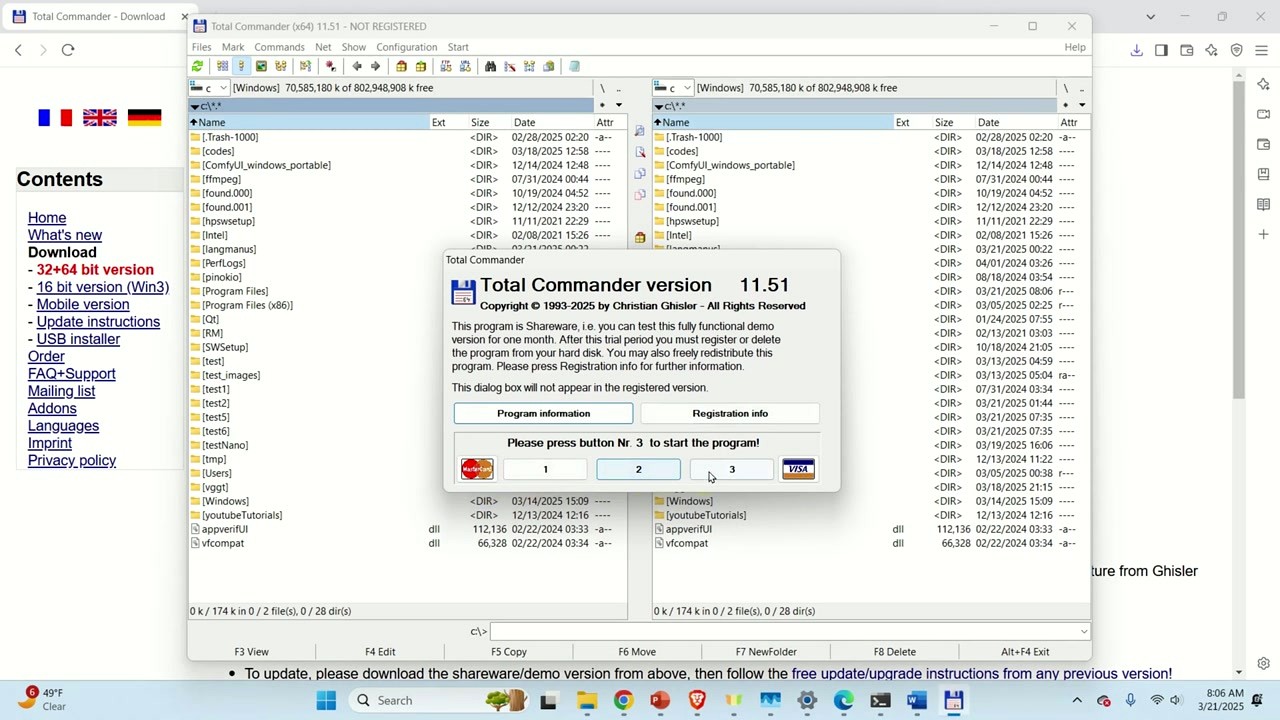
On first launch, you will see a shareware reminder dialog. Total Commander is free to evaluate for 30 days. After that, you are asked to purchase a license (EUR 42, roughly $44 USD, lifetime with free updates). To dismiss the dialog, click one of the numbered buttons (1, 2, or 3) as prompted — the correct button changes each time.
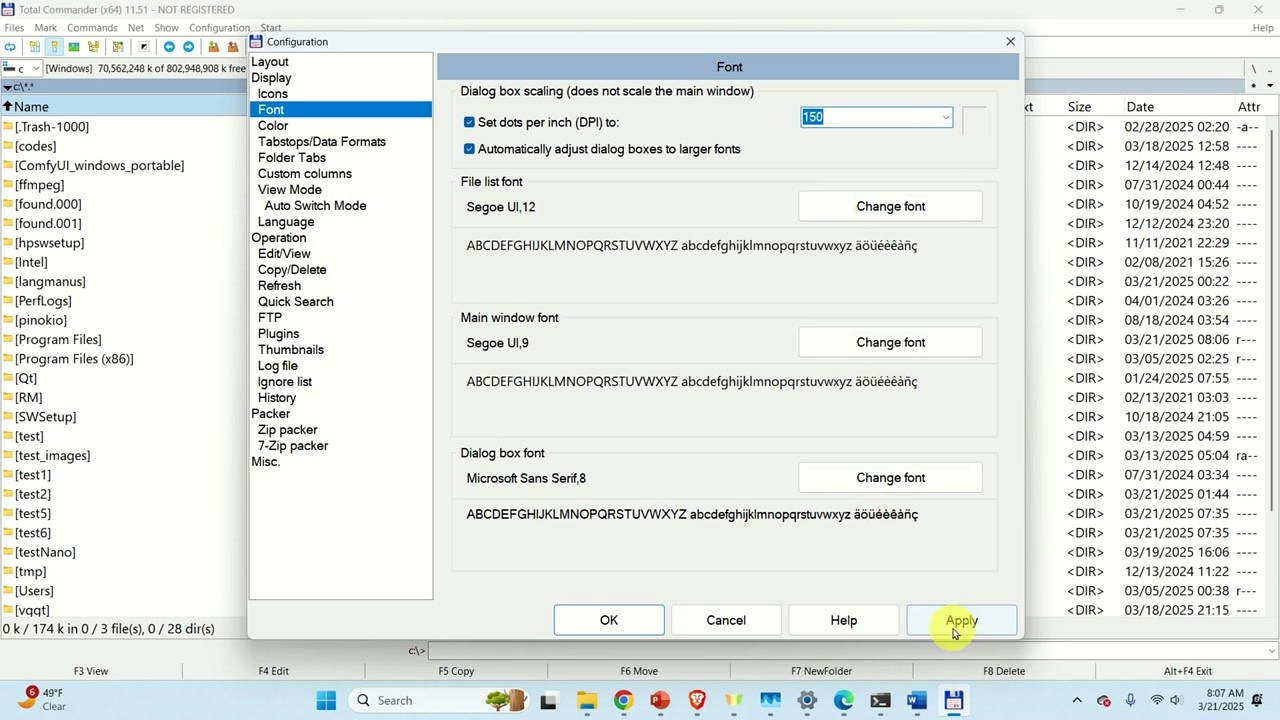
Once in, open Configuration > Options from the menu bar. Here are the settings worth adjusting right away:
- Font — change the file list font to something readable on your display. Segoe UI at size 11 or 12 works well on high-DPI screens. Check “Set dots per inch (DPI) to” and set it to your display DPI (often 125 or 150) for proper scaling.
- Display — enable “Show hidden/system files” if you work with system folders. Toggle “Flat interface” on if you prefer a modern, borderless look.
- Operation — enable “Select only the file name when renaming inline (F2)” so extensions stay untouched when you rename files.
- Language — switch UI language here if the installer language was not what you wanted.
- Folder Tabs — turn on “Restore tabs on startup” to keep your panel tabs between sessions.
Click “Apply” then “OK.” Your settings are saved to wincmd.ini and persist across restarts.
Your First File Operation
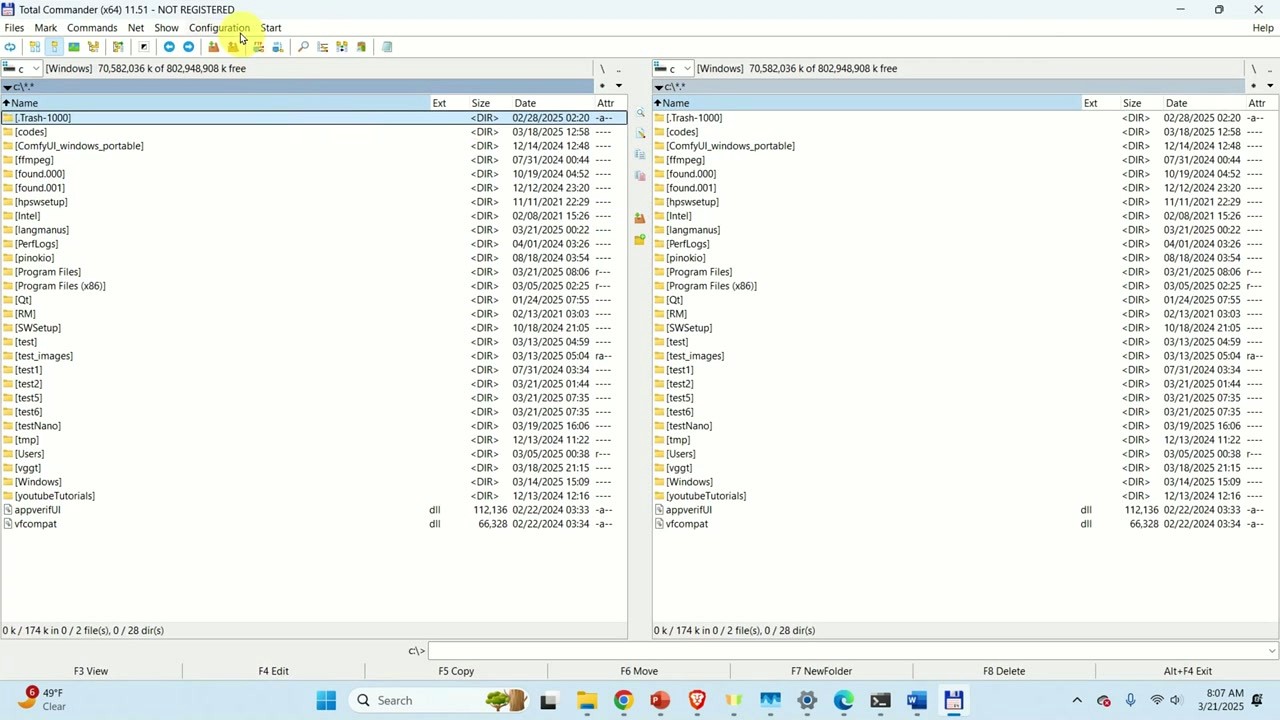
Total Commander opens with two panels side by side, each showing a directory listing. The left panel and right panel work independently — navigate each one to a different folder and you can copy, move, or compare files between them.
Here is how to copy a batch of files from one folder to another:
- In the left panel, navigate to the source folder. Click a directory name to open it, or click
[..]to go up one level. - In the right panel, navigate to the destination folder.
- Select the files you want to copy. Click a file to highlight it, or press Insert on your keyboard to select/deselect individual files. You can also right-click to select.
- Press F5 (or click the “F5 Copy” button at the bottom). A dialog appears confirming the copy destination. Press Enter to start.
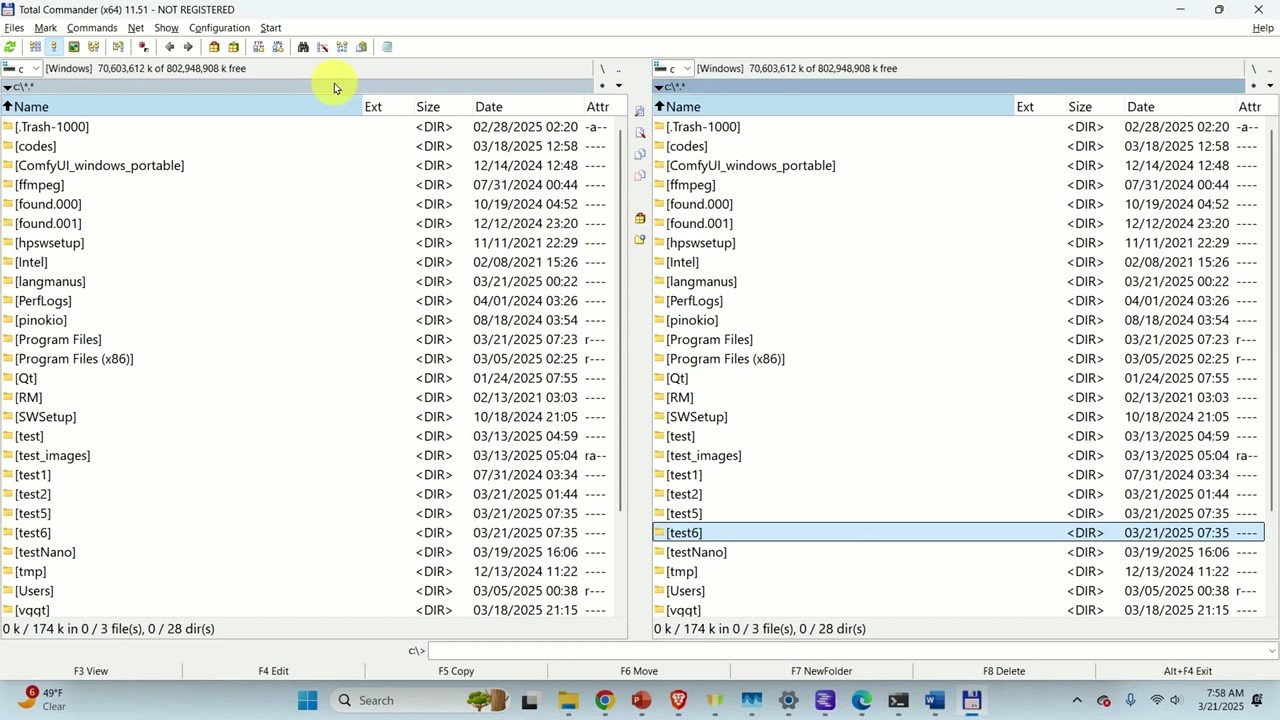
That is the core workflow: one panel is source, the other is destination. Moving files uses F6 instead. Deleting is F8. Creating a new folder is F7.
A few more things to try in your first session:
- Tabs — press Ctrl+T to open a new tab in the current panel. You can have multiple tabs per side, like browser tabs for folders.
- Quick search — start typing a file name and Total Commander instantly filters the current directory to match. No need to open a search dialog for simple lookups.
- Preview — press F3 on any file to view its contents in the built-in viewer. Works for text, images, and many other formats.
- Archives — double-click a ZIP, RAR, or 7z file and Total Commander opens it like a regular folder. You can copy files in and out of archives using the same F5/F6 shortcuts.
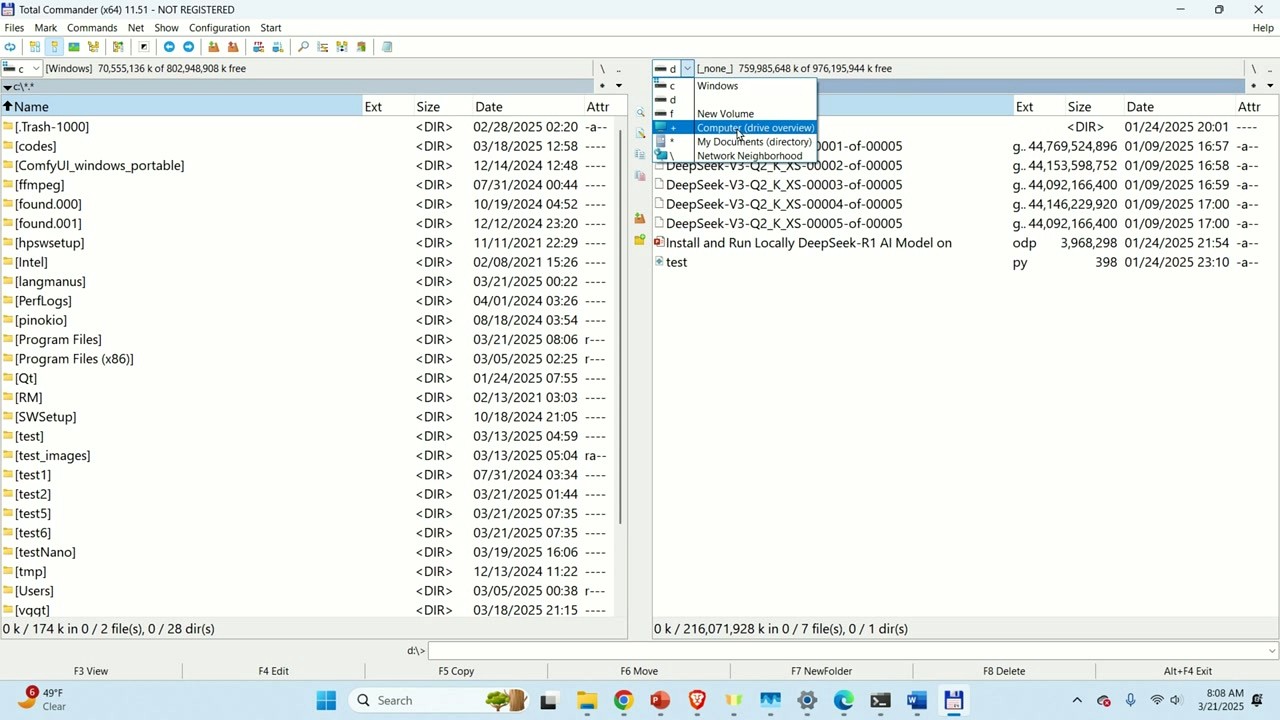
To switch drives, click the drive letter buttons above each panel or use the dropdown selector. The drive bar shows all connected drives including network drives and mapped paths.
Here are the keyboard shortcuts you will use most often:
| Shortcut | Action |
|---|---|
| F3 | View file contents |
| F4 | Edit file in external editor |
| F5 | Copy selected files to other panel |
| F6 | Move/rename selected files |
| F7 | Create new directory |
| F8 / Del | Delete selected files |
| Ctrl+T | Open new tab |
| Ctrl+W | Close current tab |
| Tab | Switch focus between left and right panel |
| Alt+F1 | Change drive in left panel |
| Alt+F2 | Change drive in right panel |
| Ctrl+Q | Quick view panel (preview in opposite panel) |
| Ctrl+M | Built-in file viewer |
Tips, Tricks & Best Practices
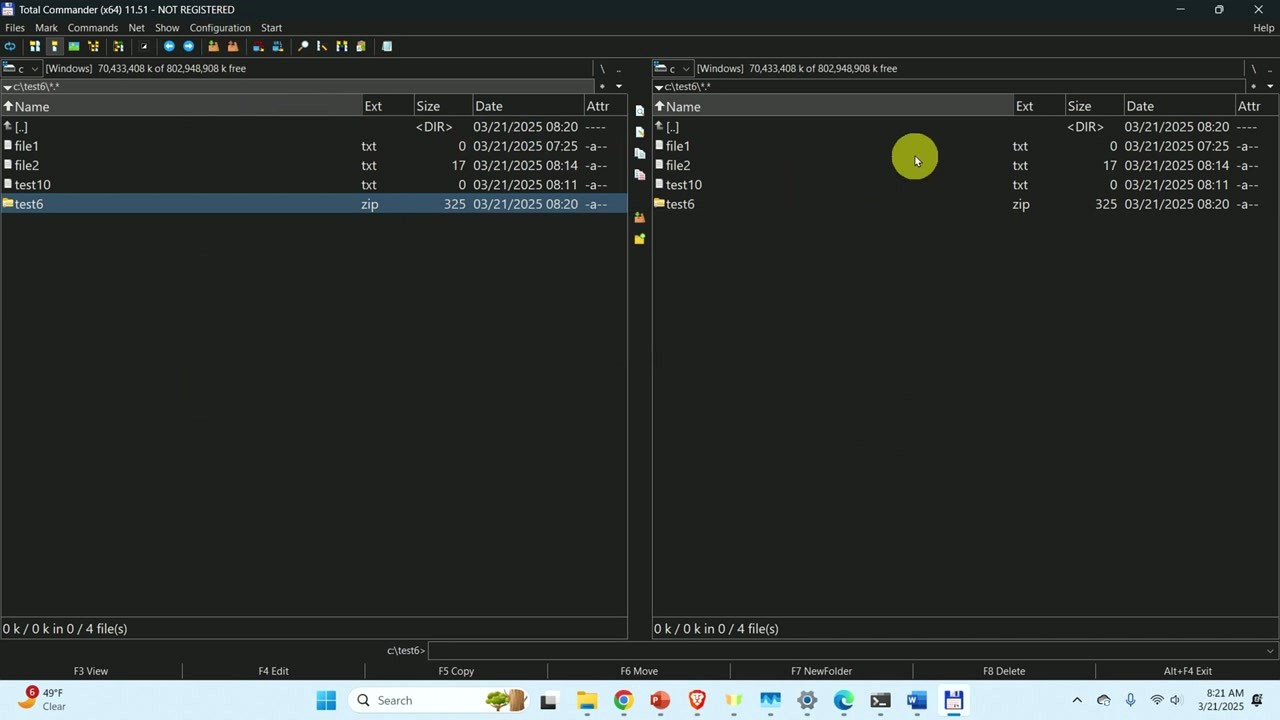
Built-in file viewer — select a batch of files and press Ctrl+M. This opens a rename dialog where you can use patterns like [N] for original name, [C] for counter, and [E] for extension. You can preview every rename before applying. This alone saves hours if you deal with photo sets or log files.
FTP connections — go to Net > FTP Connect (or press Ctrl+F) to open the built-in FTP client. It supports FTP, FTPS, and SFTP. Once connected, the remote server shows up in one panel and your local disk in the other — file transfers work with the same F5/F6 shortcuts.
Directory sync — open Commands > Synchronize Dirs to compare two folders and sync differences. Handy for backup routines and keeping mirror copies in order.
Plugins — Total Commander has thousands of plugins available at totalcmd.net. Packer plugins add support for exotic archive formats. Viewer plugins let F3 preview PDFs, Office docs, or video thumbnails. File system plugins add virtual folders for things like registry browsing or cloud storage. Install them by going to Configuration > Options > Plugins.
Common beginner mistake: forgetting that Insert (not click) is the primary way to select files. Click moves the cursor. Insert toggles selection and moves down, which is much faster for picking specific files from a long list.
Ready to try it? Download Total Commander and follow these steps to get started.
Frequently Asked Questions
Answers to the most common questions about downloading, installing, and using Total Commander on Windows.
Is Total Commander safe to download?
Yes, Total Commander is safe to download. The software has been developed by Christian Ghisler and Ghisler Software GmbH in Switzerland since 1993, with over 30 years of continuous development and millions of users worldwide. The official installer from ghisler.com is digitally signed, and the program contains no adware, spyware, or bundled toolbars.
The current version 11.56 has a combined installer size of approximately 10.7 MB for both 32-bit and 64-bit editions. Independent antivirus testing on VirusTotal consistently returns clean results for the official installer. Major security outlets and software review sites such as Softpedia, MajorGeeks, and FileHippo list Total Commander as a trusted download. The software has been used in enterprise environments for decades, with IT departments approving it for corporate workstations.
- Always download from the official site at ghisler.com or from our download section
- Verify the file size is around 10.7 MB for the combined 32/64-bit installer
- The installer is digitally signed by Ghisler Software GmbH
- Avoid third-party download sites that may bundle unwanted software
Pro tip: If Windows SmartScreen shows a warning when you run the installer, click “More info” then “Run anyway.” This happens with some less-common software and does not indicate a security problem with Total Commander.
For step-by-step installation instructions, see our Getting Started guide.
Is Total Commander free from malware and spyware?
Total Commander is completely free from malware and spyware. Ghisler Software GmbH has maintained a clean track record since the program first launched as “Windows Commander” in 1993. The company makes revenue through license sales (EUR 42 for a lifetime license), so there is no financial incentive to bundle anything unwanted.
One concern that occasionally surfaces in corporate IT departments is related to an old WinRAR DLL (unrar.dll) that Total Commander uses internally for RAR archive support. In versions prior to 9.22, this DLL had a known vulnerability (CVE-2018-20250). Christian Ghisler patched this in Total Commander 9.22 and later, so version 11.56 is fully patched. If your IT team raises this issue, point them to the official forum thread confirming the fix.
- No adware, toolbars, or bundled third-party installers
- The unrar.dll vulnerability was fixed in version 9.22 (2019)
- No data collection or telemetry built into the application
- The program works fully offline after installation
Pro tip: You can verify the integrity of your download by comparing the file hash against the values published on ghisler.com. Use Total Commander itself to calculate CRC checksums via Files > Create CRC Checksums.
Check the system requirements to make sure your setup meets the minimum specs before installing.
Where is the official safe download for Total Commander?
The official download for Total Commander is at ghisler.com/download.htm, maintained directly by developer Christian Ghisler. You can also download Total Commander from our download section, which links to the official installer.
Ghisler provides several download mirrors including HTTP and FTP options across multiple geographic locations. The main installer file is tcmd1156x32_64.exe (approximately 10.7 MB), which includes both the 32-bit and 64-bit editions in a single package. A separate 64-bit-only installer is also available at about 5 MB if you only need the 64-bit version. The installer lets you choose between a standard installation and a portable USB installation during setup.
- Official source: ghisler.com/download.htm
- Our site: totalcommander.app download section
- Combined installer: tcmd1156x32_64.exe (~10.7 MB)
- 64-bit only: tcmd1156x64.exe (~5 MB)
Pro tip: Avoid downloading Total Commander from random software aggregation sites. Some repackage the installer with bundled adware. Stick with the official source or trusted mirrors listed on ghisler.com.
After downloading, follow our Getting Started guide for installation instructions.
Does Total Commander work on Windows 11?
Yes, Total Commander works on Windows 11 without any issues. Version 11.56 fully supports Windows 11 including the 24H2 update, and the program runs natively in 64-bit mode on modern Windows installations.
Total Commander has supported every version of Windows from Windows 95 through Windows 11. On Windows 11, the program integrates with the system context menu, file associations, and drag-and-drop without compatibility hacks. The 64-bit edition takes advantage of large memory addressing, which matters when working with directories containing hundreds of thousands of files. Total Commander also respects Windows 11 DPI scaling settings and looks sharp on high-resolution displays.
- Windows 11 (all editions including Home, Pro, Enterprise) is fully supported
- Both 32-bit and 64-bit versions run on Windows 11
- High DPI and multi-monitor setups work correctly
- UAC (User Account Control) integration works as expected
Pro tip: On Windows 11, you can add Total Commander to the “Open with” context menu by running the installer and selecting the option to add shell extensions. This lets you right-click any folder in File Explorer and open it directly in Total Commander.
See the full list of supported operating systems in our system requirements section.
What are the minimum system requirements for Total Commander?
Total Commander runs on almost any Windows PC. The minimum requirement is Windows 95 for the 32-bit version or Windows XP for the 64-bit version, with just 16 MB of RAM and about 20 MB of disk space.
In practice, the program is remarkably lightweight. On a modern Windows 10 or 11 machine, Total Commander typically uses around 15-30 MB of RAM during normal file operations. The installer itself is only 10.7 MB, and the installed program takes about 20 MB of disk space before you add plugins. CPU usage stays near zero when the program is idle. This makes Total Commander one of the most resource-efficient file managers available, running smoothly even on older hardware, thin clients, and virtual machines with limited resources.
- OS: Windows 95+ (32-bit) or Windows XP+ (64-bit), recommended Windows 10/11
- CPU: Any x86 processor, recommended modern multi-core
- RAM: 16 MB minimum, recommended 512 MB+
- Disk: ~20 MB installed, 50 MB+ with plugins
- Display: 640×480 minimum, recommended 1024×768 or higher
Pro tip: If you use many plugins (file system plugins, content plugins, viewer plugins), plan for extra disk space. A heavily customized Total Commander installation with 20-30 plugins might use 100-200 MB total.
View the complete requirements breakdown in our system requirements table.
Is there a version of Total Commander for Mac or Linux?
There is no native macOS or Linux version of Total Commander. The desktop application is Windows-only. However, Total Commander is available on Android for free through Google Play.
Christian Ghisler has stated in forum posts that porting Total Commander to macOS or Linux would require rewriting the entire application, since it is built in Delphi (Object Pascal) and relies heavily on Windows API calls. The Android version is a separate codebase with a touch-optimized interface. For Mac and Linux users who want a similar dual-pane file manager experience, several alternatives exist that follow the same “orthodox file manager” design pattern that Total Commander popularized.
- Linux alternatives: Double Commander (free, open-source, closest to TC), Krusader (KDE), Midnight Commander (terminal)
- macOS alternatives: Commander One, muCommander (free, Java-based), ForkLift
- Wine/CrossOver: Some users run Total Commander on Linux through Wine, but plugin support and FTP functionality may not work correctly
Pro tip: If you use both Windows and Linux, Double Commander is the closest match to Total Commander. It supports TC color schemes, some TC plugins, and has a nearly identical keyboard shortcut layout.
For details on what makes the Windows version powerful, see our features section.
Is Total Commander free to download and use?
Total Commander is shareware with a 30-day evaluation period. You can download it for free and use every feature without restrictions during the trial. After 30 days, you see a reminder screen at startup asking you to register, but the program continues to function fully.
A personal license costs EUR 42 (approximately $44 USD) and covers one user on multiple personal computers. This is a lifetime license with no subscription fees and no renewal costs. All future updates are included for free. The same license key works with version 5.x through 11.x, so you buy it once and get updates for years. Ghisler Software also offers volume discounts for businesses: 2-10 licenses cost EUR 34 each, and larger volumes go as low as EUR 13 per seat.
- 30-day free trial with full functionality
- Personal license: EUR 42 (~$44 USD) – lifetime, includes all updates
- Business 2-10 licenses: EUR 34 each
- Business 100+ licenses: EUR 13 each
- After the trial, a nag screen appears but the software remains fully functional
Pro tip: If you want to try before buying, the 30-day trial gives you complete access to every feature including FTP, plugins, and multi-rename. There are no feature limitations during the evaluation period.
Download the trial from our download section and evaluate it risk-free.
Is Total Commander worth buying compared to free alternatives?
Whether Total Commander is worth EUR 42 depends on how much time you spend managing files. For users who work with files daily, the productivity gains typically pay for the license within a few weeks of use.
Free alternatives like FreeCommander, Double Commander, and Q-Dir offer basic dual-pane file management. Where Total Commander pulls ahead is in its batch rename tool (which uses regex patterns and can rename thousands of files in seconds), the built-in FTP/SFTP client (which replaces a standalone FTP app), directory synchronization (which compares and syncs entire folder trees by content), and the plugin ecosystem (thousands of plugins for archive formats, cloud storage, registry editing, and more). The program also handles directories with 100,000+ files without slowing down, which trips up some free managers.
- Free alternatives cover basic file operations well enough for casual users
- Total Commander excels at batch operations, FTP, directory sync, and plugin extensibility
- The lifetime license with free updates makes the per-year cost negligible
- Power users who work with large file collections benefit the most
Pro tip: Many long-time users report using the same license key for 10-15 years across multiple Total Commander major versions. At EUR 42 over 10 years, that works out to about EUR 4 per year.
See exactly what you get in our features overview.
How do I install Total Commander step by step?
Installing Total Commander takes about two minutes. Download the installer from our download section, run it, and follow the setup wizard.
The combined installer (tcmd1156x32_64.exe) automatically detects your Windows architecture and installs the correct version. During setup, you choose between a standard installation (installs to C:\totalcmd\ by default) and a portable USB installation. The installer also asks whether to create desktop and Start Menu shortcuts, and whether to add Total Commander to the Windows context menu.
- Download tcmd1156x32_64.exe (~10.7 MB) from our download section
- Double-click the installer. If Windows SmartScreen appears, click “More info” then “Run anyway”
- Accept the license agreement and choose your installation directory (default: C:\totalcmd\)
- Select “Standard installation” for most users, or “Portable installation” if you want to run from a USB drive
- Choose which shortcuts to create (desktop, Start Menu, context menu integration)
- Click “Next” to complete the installation, then launch Total Commander
Pro tip: If you are upgrading from an older version, install the new version into the same directory as your existing installation. Total Commander preserves your settings, toolbar customizations, FTP bookmarks, and plugin configurations automatically.
For detailed first-run configuration, check our Getting Started guide.
Total Commander portable vs installer – which should I choose?
Choose the standard installer if you use Total Commander on one PC. Choose the portable version if you want to carry your file manager on a USB drive between multiple computers.
The standard installation writes settings to the Windows registry and creates file associations, context menu entries, and Start Menu shortcuts. The portable installation stores everything (the program, settings, plugin paths) inside a single folder that you can copy to a USB stick. Both versions are feature-identical. The portable version reads its configuration from wincmd.ini in the same folder as the executable, while the standard install uses %APPDATA%\GHISLER\wincmd.ini.
- Standard installer: best for daily use on your own PC, integrates with Windows shell
- Portable: best for USB drives, work computers where you cannot install software, or testing
- You can convert a standard installation to portable later by copying the totalcmd folder and wincmd.ini to a USB drive
- Portable version runs without admin rights on most systems
Pro tip: You can run a portable Total Commander alongside a standard installation without conflicts. Many users keep a portable copy on a USB drive as a backup, even though they have it installed on their main PC.
Download both options from our download section.
How to fix Total Commander not opening or crashing on startup?
If Total Commander crashes or fails to start, the most common cause is a corrupted configuration file (wincmd.ini) or a conflicting plugin. Start by renaming wincmd.ini to force a fresh configuration.
The wincmd.ini file stores all your settings, toolbar layouts, and plugin references. A bad entry, an invalid plugin path, or a corrupted FTP bookmark can prevent Total Commander from starting. On a standard installation, this file is located at %APPDATA%\GHISLER\wincmd.ini. On a portable installation, it is in the same folder as totalcmd.exe. Renaming or deleting this file forces Total Commander to create a fresh default configuration on next launch.
- Close all Total Commander processes (check Task Manager for totalcmd.exe or totalcmd64.exe)
- Navigate to %APPDATA%\GHISLER\ and rename wincmd.ini to wincmd.ini.bak
- Try launching Total Commander. If it starts, the ini file was corrupted
- Restore your old settings by copying sections from wincmd.ini.bak back into the new wincmd.ini one at a time to find the problematic entry
- If it still crashes, check the plugins folder. Rename the plugins directory temporarily to rule out a bad plugin DLL
Pro tip: If Total Commander shows a “totalcmd.exe is defective” warning at startup, your antivirus may have modified the executable. Re-download the installer from ghisler.com and reinstall. Also add totalcmd.exe and totalcmd64.exe to your antivirus exclusion list.
For fresh installations, follow our Getting Started guide.
Why is Total Commander running slowly and how can I speed it up?
Slow performance in Total Commander is almost always caused by thumbnail generation, network drives, or a content plugin scanning files in the background. The program itself uses very little CPU and RAM.
When you open a directory with hundreds of images and thumbnail view is enabled, Total Commander reads each file to generate previews. This can lock up the interface for seconds or minutes on large folders. Network drives make this worse because every file read goes over the network. Content plugins that extract metadata (EXIF data, document properties, audio tags) also slow down directory listings because they process every visible file.
- Switch from thumbnail view to detailed list view (Ctrl+F1) for large directories
- Disable content plugins you do not use: Configuration > Options > Plugins > Content Plugins
- Turn off column auto-calculation for network drives: Configuration > Options > Display > Show > uncheck “Automatically calculate folder sizes”
- Reduce the number of columns shown in the file list (custom columns with many content plugin fields slow rendering)
- On network drives, disable the quick search overlay: Configuration > Options > Quick Search > set to “Command line only”
Pro tip: If startup is slow after upgrading, check Configuration > Options > Operation > “Load plugins on demand” to avoid loading all plugins at startup. This alone can cut launch time from 5+ seconds to under 1 second.
View the recommended hardware specs in our system requirements section.
Total Commander stopped working after a Windows update – how to fix?
Windows updates occasionally break Total Commander’s quick search, context menu integration, or file operation permissions. The fix depends on what stopped working, but reinstalling usually resolves the problem.
After major Windows feature updates (like upgrading from 23H2 to 24H2), Windows sometimes resets file associations and shell extensions. This can cause Total Commander to lose its context menu entries or fail to open certain file types. Security updates can also change UAC behavior, preventing Total Commander from writing to protected directories. In rare cases, a Windows update modifies the Visual C++ runtime libraries that some TC plugins depend on.
- Re-run the Total Commander installer over your existing installation to restore file associations and shell extensions
- If context menu entries are missing, check Configuration > Options > Operation > “Add Total Commander to context menu”
- If file operations fail with “Access denied,” run Total Commander as administrator (right-click > Run as administrator) to test if it is a permissions issue
- Update to the latest Total Commander version via Help > Check for Updates, as Christian Ghisler often patches Windows compatibility issues quickly
Pro tip: After any major Windows update, also check your antivirus settings. Some antivirus programs reset their exclusion lists during updates, which can cause false positives on totalcmd.exe or totalcmd64.exe.
Download the latest version from our download section to make sure you have all compatibility fixes.
How to update Total Commander to the latest version?
You can update Total Commander by downloading the latest installer and running it over your existing installation. Your settings, plugins, and license key are preserved automatically.
Total Commander does not have a built-in auto-updater in the traditional sense. To check for updates, go to Help > About Total Commander to see your current version number. The latest stable release is version 11.56 (released August 19, 2025), and the latest beta is 11.57 beta 3 (March 11, 2026). Christian Ghisler posts update announcements on the official forum at ghisler.ch/board/ and on the ghisler.com homepage. Beta versions are available for testing new features before they reach stable.
- Check your current version: Help > About Total Commander
- Download the latest installer from our download section or ghisler.com/download.htm
- Run the installer and point it to your existing Total Commander directory (default: C:\totalcmd\)
- The installer detects the existing installation and upgrades in place, keeping all your settings
- Restart Total Commander after the update completes
Pro tip: If you want to test beta versions without risking your stable installation, install the beta to a separate folder (like C:\totalcmd_beta\). Copy your wincmd.ini to that folder so you start with your existing settings.
Check the features section for what version 11.56 includes.
What is new in Total Commander 11.56?
Total Commander 11.56 was released on August 19, 2025, bringing improvements to archive handling, the built-in file viewer, and various bug fixes for Windows 11 compatibility.
Version 11.x introduced several major features since the 10.x series, including improved support for very long file paths (beyond the 260 character Windows limit), better handling of high DPI displays and per-monitor scaling, updated built-in archive support for newer 7z and RAR5 formats, and enhancements to the FTP/SFTP client. The multi-rename tool received regex improvements, and the compare/synchronize function got faster with large directory trees. Christian Ghisler also improved the Lister (built-in viewer) with better UTF-8 handling and support for more image formats.
- Improved long path support (paths longer than 260 characters)
- Better high DPI and multi-monitor scaling
- Updated archive format support (7z, RAR5)
- FTP/SFTP client improvements
- Multi-rename regex enhancements
- Various Windows 11 compatibility fixes
Pro tip: The latest beta version 11.57 beta 3 (March 11, 2026) includes additional fixes. If you need the very latest improvements, download the beta from ghisler.com. Beta versions are generally stable enough for daily use.
Download version 11.56 from our download section.
Total Commander vs Double Commander – which file manager is better?
Total Commander is the more polished and feature-rich option, while Double Commander is the best free open-source alternative with cross-platform support on Windows, macOS, and Linux.
Double Commander was built as an open-source clone of Total Commander and shares a very similar interface. It supports some Total Commander plugins (WCX packer plugins and WDX content plugins), uses a similar keyboard shortcut layout, and can import Total Commander color schemes. However, Total Commander has a larger plugin ecosystem (thousands of plugins vs hundreds), a more mature FTP/SFTP client, a more powerful multi-rename tool, and better performance with very large directories (100,000+ files). Double Commander occasionally has UI bugs and slower development cycles. Total Commander receives regular updates from a full-time developer (Christian Ghisler), while Double Commander relies on community contributors.
- Total Commander: paid (EUR 42), Windows only, 30+ years of development, huge plugin ecosystem, better performance
- Double Commander: free, open-source, runs on Windows/Mac/Linux, compatible with some TC plugins
- If you need cross-platform support, Double Commander is the clear choice
- If you work exclusively on Windows and handle large file operations daily, Total Commander is worth the license fee
Pro tip: You can run both side by side. Some users keep Double Commander on their Linux machines and Total Commander on Windows, using similar keyboard shortcuts across both platforms.
See what makes Total Commander stand out in our features comparison.
How do I install plugins in Total Commander?
The easiest way to install a plugin is to download the plugin archive (.zip) and open it inside Total Commander. The built-in plugin installer detects the plugin type automatically and installs it with one click.
Total Commander supports four types of plugins: packer plugins (WCX) for archive formats, file system plugins (WFX) for accessing remote systems, content plugins (WDX) for custom file properties and columns, and lister plugins (WLX) for viewing file types in the built-in viewer. The official plugin repository at ghisler.com/plugins.htm lists hundreds of plugins. The community wiki at ghisler.ch/wiki/ has additional plugins and guides. For the auto-installer to work, the plugin archive must contain a pluginst.inf file.
- Download the plugin archive (.zip or .rar) from ghisler.com/plugins.htm or totalcmd.net
- Open the archive inside Total Commander by double-clicking it
- Total Commander detects the pluginst.inf file and asks if you want to install the plugin
- Click “Yes” and choose an installation directory (default locations work fine)
- Restart Total Commander if prompted
- The plugin appears in Configuration > Options > Plugins under its type (Packer, FileSystem, Content, or Lister)
Pro tip: If a plugin does not have a pluginst.inf file, install it manually: copy the .wlx/.wcx/.wfx/.wdx file to a plugins folder, then add it in Configuration > Options > Plugins by browsing to the file. Make sure the plugin matches your TC architecture (32-bit plugins for 32-bit TC, 64-bit for 64-bit TC).
Learn more about Total Commander’s extensibility in our features section.
How do I batch rename files in Total Commander?
Select the files you want to rename, then press Ctrl+M or go to Files > Multi-Rename Tool. This opens Total Commander’s batch rename dialog where you can rename hundreds or thousands of files at once using patterns, counters, and regular expressions.
The Multi-Rename Tool is one of Total Commander’s most powerful features. It lets you define a rename mask using placeholders like [N] for the original name, [C] for a counter, [E] for the extension, [D] for the date, and [Y] for the year. You can also use search-and-replace with regular expressions to transform file names. The preview column shows exactly what each file will be renamed to before you commit, so you can verify the results. If something goes wrong, Ctrl+Z in the rename dialog undoes the entire batch rename.
- Select files in one panel (Ctrl+A for all, or hold Shift/Ctrl to select specific files)
- Press Ctrl+M to open the Multi-Rename Tool
- Enter a rename mask in the “Rename mask” field. Example: [N]_[C] adds a counter after each filename
- Use “Search & Replace” to find and replace text in filenames (supports regex)
- Check the preview column to verify the new names look correct
- Click “Start!” to apply the rename
Pro tip: You can save frequently used rename patterns as presets. Click the dropdown arrow next to the rename mask field to save and load patterns. This is a huge time saver for photographers, music collectors, and anyone who processes files in batches regularly.
See all the file management tools in our features section.